
A frozen screen, strange answers, or a teacher saying “clear your calculator before the test” can all send you to the reset menu. One wrong tap there can wipe out hours of saved programs.
This guide shows you how to reset a TI-84 without deleting programs. It starts with the safest fixes and moves up to a full factory reset. Steps cover the TI-84 Plus and TI-84 Plus CE.
Back Up First: Protect Your TI-84 Programs Before a Reset
A backup takes a few minutes and can save you from losing everything. Do this before any reset beyond a simple restart.
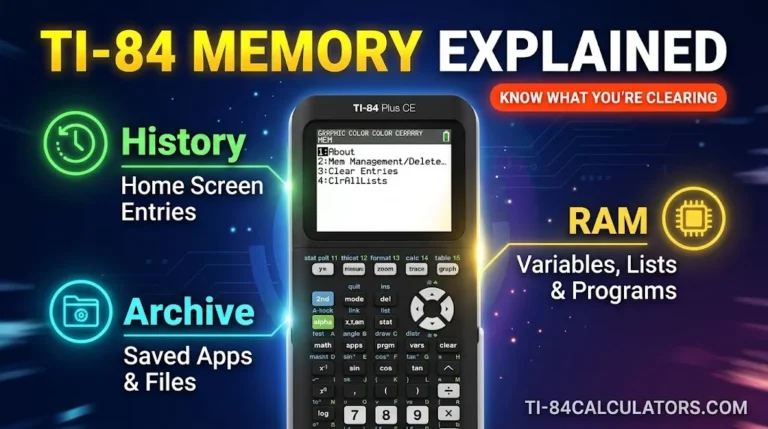
Your calculator has two storage areas. RAM holds active variables and programs, and it is the easiest to erase. Archive (also called Flash ROM) is safer storage that most reset options leave alone.
To archive a program on the calculator:
- Press [2nd] then [+] to open the MEM menu.
- Choose 2:Mem Mgmt/Del, then Prgm.
- Move to your program and press [ENTER]. An asterisk appears next to archived items.
You can also back up to a computer. Install TI Connect CE on Windows or macOS and connect your calculator with a USB cable. Then copy your programs, apps, lists and pictures to the computer.
Warning: Archive is not fully safe. The reset options Vars, Apps, Both and All Memory delete archived items too.
How to Reset a TI-84 Without Deleting Programs
Most problems do not need a full wipe. Try these fixes in order and stop when your calculator works again.
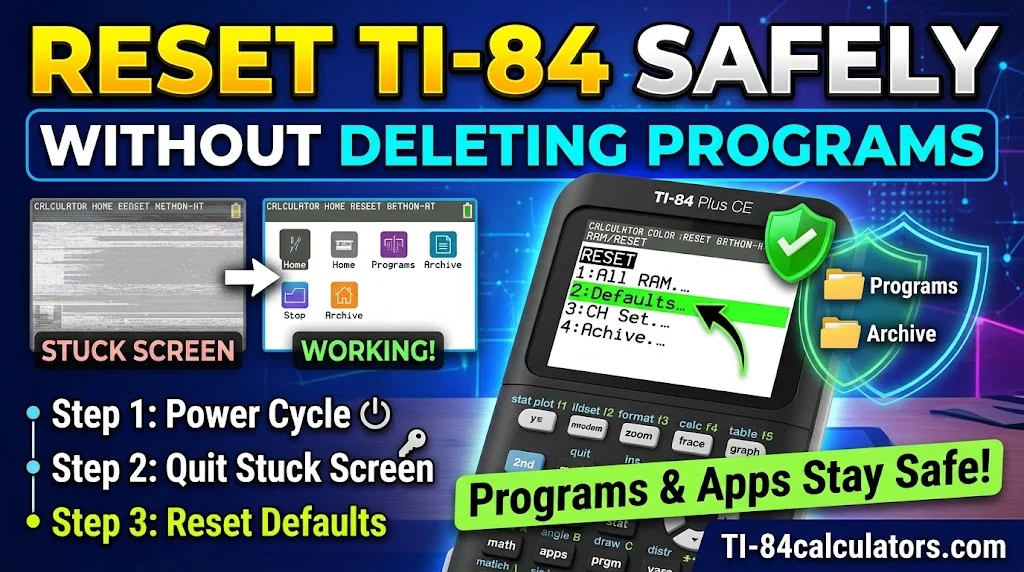
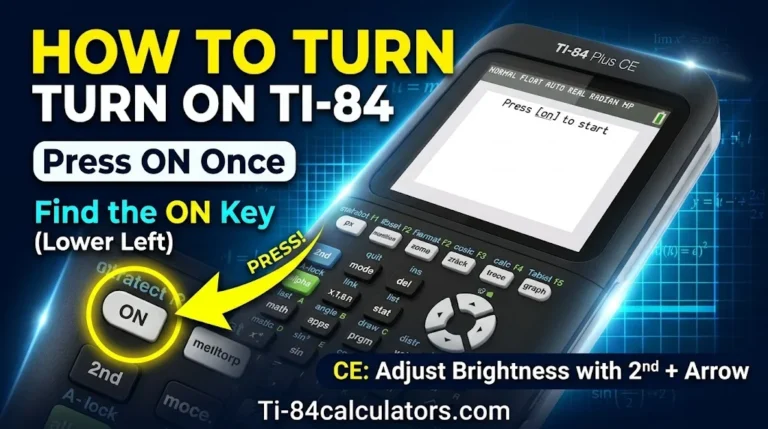
Step 1: Power cycle. Press [2nd] then [ON] to turn it off. Press [ON] to turn it back on. This clears many small glitches.
Step 2: Quit or clear the screen. Press [2nd] then [MODE] to quit a stuck screen. Press [CLEAR] to wipe the screen you are on.
Step 3: Reset Defaults.
- Press [2nd] then [+].
- Choose 7:Reset…
- Open the RAM tab and pick 2:Defaults.
- Choose 2:Reset to confirm.
Reset Defaults restores factory settings such as Mode, Graph Format and Table Setup. It does not delete programs, Archive items or Apps, according to Texas Instruments.
Here is a quick guide to matching the fix with the problem:
- Frozen screen: power cycle.
- Wrong angle mode or odd decimals: Reset Defaults.
- Blank graph: Reset Defaults, then check the Y= screen.
- Stuck in an app: [2nd] [MODE].
Avoid All RAM for now. It clears RAM programs and variables.
How to Clear Calculator History on a TI-84
You can clear your history without any reset. This is often all your teacher wants.
The TI-84 stores past entries so you can bring them back with [2nd] [ENTER]. To remove them:
- Press [2nd] then [+].
- Choose 3:Clear Entries.
To clear the Home screen, press [CLEAR] while the cursor sits on an empty line. You can also run the ClrHome command from the program menu.
Lists hold data too. Open the same MEM menu and choose 4:ClrAllLists to empty them. Programs stay untouched.
Some state tests ask for cleared memory or Press-to-Test mode. Check the rules on the TI exam information page before test day.
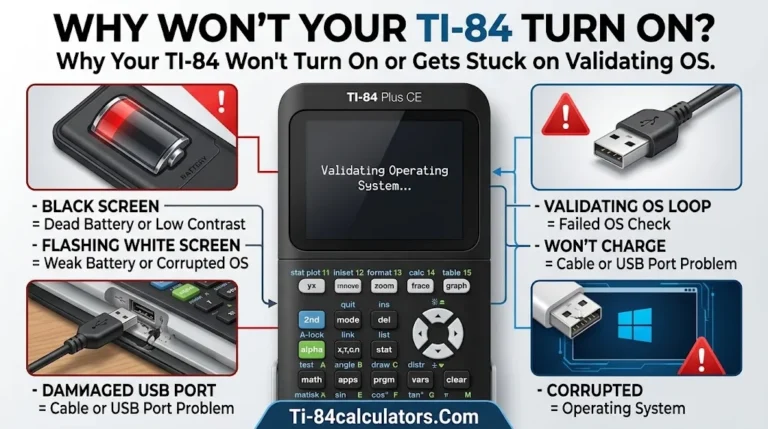
If your TI-84 continues showing a blank screen, refuses to power on, or gets stuck during an OS validation process after a reset, the problem may require more than a simple memory cleanup. Understanding how to troubleshoot TI-84 startup and operating system errors can help you identify the underlying issue and get your calculator working again without risking your saved programs and data.
How to Factory Reset a TI-84 Calculator Fully
A full reset is the last step, not the first. Use it when the calculator still misbehaves or you are handing it to someone else.
Here is what each option does:
| Option | What it clears |
|---|---|
| Defaults | Settings only. No data is deleted. |
| All RAM | Variables and programs in RAM. Archive and Apps stay. |
| Vars | Variables in Archive. |
| Apps | Apps in Archive. |
| Both | Archive variables and Apps. |
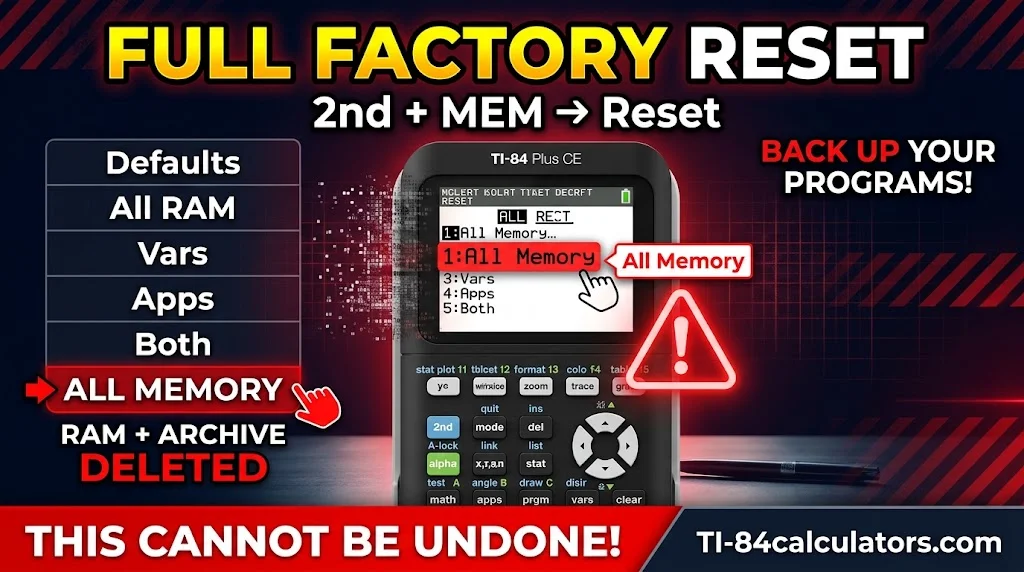
| All Memory | Everything in RAM and Archive. Only the OS remains. |
To factory reset a TI-84 calculator, press [2nd] [+], choose 7:Reset…, open the ALL tab and select All Memory. Confirm to finish. Back up first, because this cannot be undone.
The TI-84 Plus CE has three extra options:
- Reset button: Slide off the case. Hold the button on the back for at least 2 seconds. This clears RAM only. Archive stays safe.
- Battery reset: Remove the battery, wait a few seconds, then put it back. You will see a “RAM Cleared” screen.
- OS reinstall: Hold [2nd] and [DEL], then press the back reset button. When the “Install OS now” screen appears, release the keys. In TI Connect CE, choose Actions, then Send OS/Bundle. Never unplug the cable during the transfer.
An OS update cannot be rolled back. Newer versions can block some third-party programs and games. If you know your old version, install that one. OS 5.4.0 is often the safer pick.
If your calculator still has a black screen or will not turn on, contact TI customer support. You can call 1-800-TI-CARES or email ti-cares@ti.com.
FAQs
How to reset TI-84 without deleting programs?
Use a power cycle or Reset Defaults. Archive your programs first for extra safety. Avoid All RAM, the Archive options and All Memory, since those delete saved data.
How to factory reset a TI-84 calculator?
Press [2nd] [+], choose 7:Reset…, open the ALL tab and select All Memory. Confirm the prompt. Back up first, because this removes everything except the operating system.
How do I fully reset a calculator?
Use All Memory on the TI-84 Plus. On the TI-84 Plus CE, you can also use the back reset button or reinstall the OS. These work well when the screen is frozen or unresponsive.
How to clear calculator history?
Press [2nd] [+] and choose 3:Clear Entries. Press [CLEAR] on an empty line to wipe the Home screen. Use ClrAllLists to empty lists. You do not need a full reset.
Your TI-84 does not need a full wipe to feel new again. Start with a restart, then try Reset Defaults, and keep the bigger options for last. Back up your programs before every step that deletes data. Follow this order and you can fix most problems without losing your work.

Timmy Vicky is a passionate educational technology writer who focuses on calculators, math tools, and practical learning resources. At TI84-Calculators.com, he helps students, teachers, and math enthusiasts understand how to use TI-84 calculators and explore their features more effectively. His goal is to make calculator guides, functions, and mathematical concepts easier to understand through clear explanations and step-by-step instructions.