A teacher says, “Clear your calculators before the quiz.” Then you stare at the TI-84 keys and wonder which one does what.
Here is the fast answer. To clear RAM, press 2nd, +, 7, 1, 2. To clear history, use Clear Entries in the same MEM menu. The steps below cover each TI-84 model and the mistakes to avoid.
What You Are Clearing: TI-84 History, RAM and Memory Explained
Each part of the TI-84 memory works differently. Knowing the difference keeps you from deleting the wrong thing.
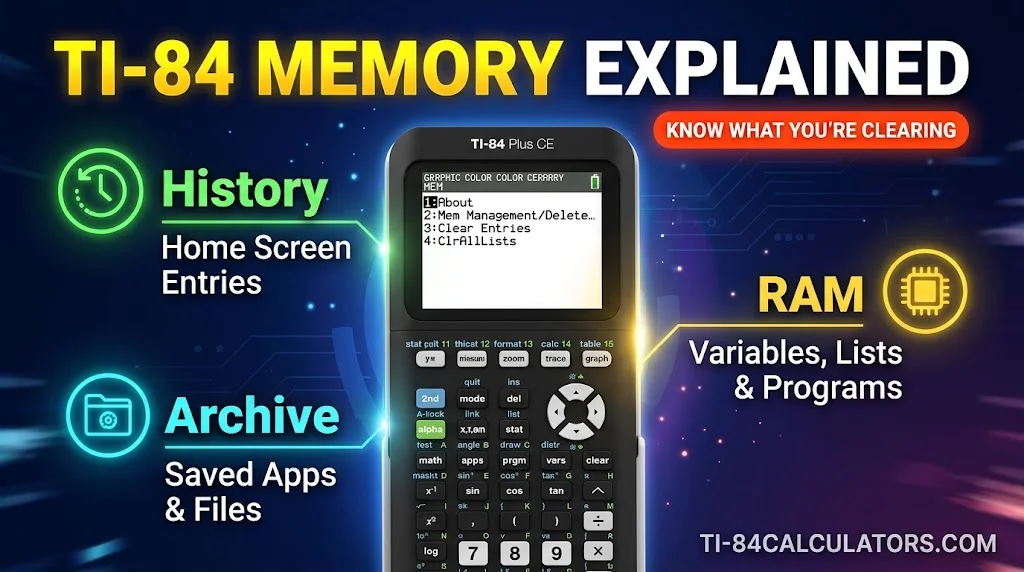
History is what you typed on the home screen. RAM (random access memory) holds variables, lists, matrices and programs you are using now. Archive (Flash ROM) stores Apps and files you saved for later.
The TI-84 Plus CE has 154 KB of available RAM, six times the TI-84 Plus. The older TI-84 Plus has 24 KB of user RAM. Newer TI-84 Plus CE Python models list 149 KB of free RAM and 3 MB of Flash ROM.
| Memory type | What it holds | Cleared by |
|---|---|---|
| History | Home screen entries, Last Entry | CLEAR key, Clear Entries |
| RAM | Variables, lists, programs | All RAM reset |
| Archive | Apps, archived programs | Vars, Apps, Both, All Memory |
How to Clear History on a TI-84 Calculator
You can erase calculator history without a full reset. Your programs and settings stay safe.
To clear the home screen, press CLEAR. Press it on an empty line to wipe the whole screen.
To clear the saved entries, follow these steps:
- Press 2nd, then + to open the MEM menu.
- Choose 3: Clear Entries.
- Press Enter.
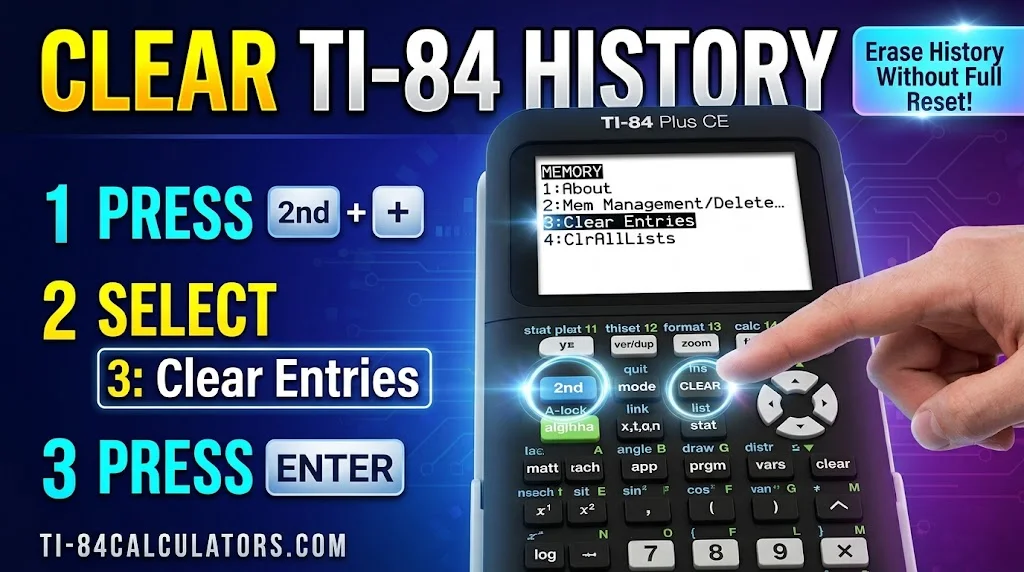
This removes what 2nd, Enter (Last Entry) would recall. To wipe lists too, choose 4: ClrAllLists. To delete one item, open 2: Mem Mgmt/Del and pick it.
How to Clear RAM and Memory on a TI-84 Plus and TI-84 Plus CE
This is the TI-84 RAM reset. It works on the TI-84 Plus, the TI-84 Plus Silver Edition and the TI-84 Plus CE. The menus look a little different, but the keys are the same.
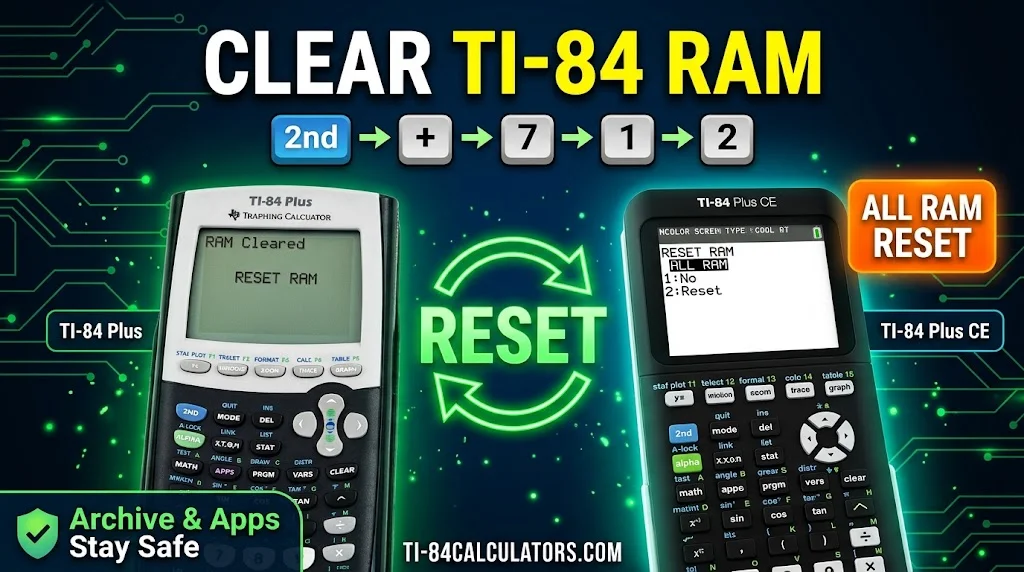
Follow these steps:
- Press 2nd, then + (MEM).
- Choose 7: Reset.
- Choose 1: All RAM.
- Choose 2: Reset.
- Press any key when RESET COMPLETE appears.
Quick memory trick: 2nd, +, 7, 1, 2.
According to Texas Instruments, All RAM clears variables and programs from RAM only. It does not delete Archive items or Apps.
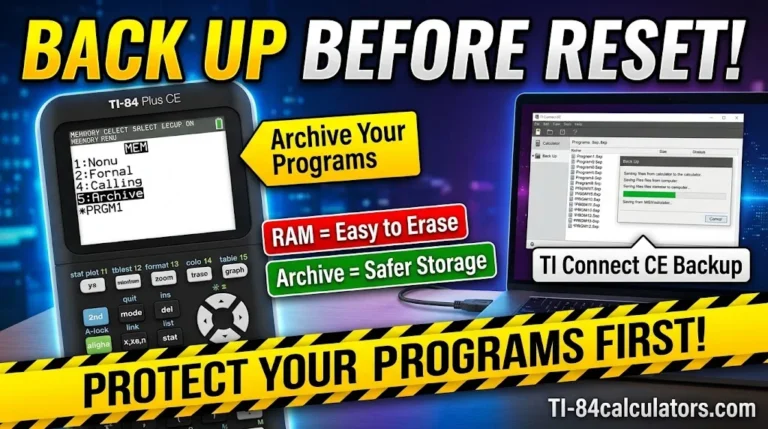
Back up first. Use TI Connect CE to save your programs to a computer. After the reset, press CLEAR and check the Mode screen. Some settings may return to default.
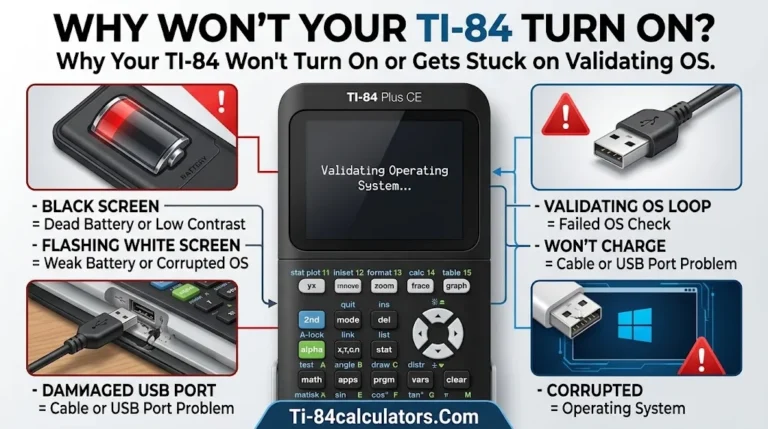
A weak battery can stop the reset on a TI-84 Plus CE. Charge it first.
Clearing history, RAM, and memory can help fix a slow or unresponsive TI-84, but choosing the wrong reset option may accidentally erase important programs or saved data. If you want to clean up your calculator while keeping your valuable files intact, learn how to reset a TI-84 without deleting saved programs and work.
TI-84 Reset Options, Test Mode and Troubleshooting
The Reset menu has more choices than All RAM. Pick the one that matches your goal. Each option below is based on TI’s reset guide.
| Option | What it does |
|---|---|
| All RAM | Clears variables and programs in RAM |
| Defaults | Resets mode and system settings. Keeps your data |
| Vars | Clears variables from Archive |
| Apps | Clears Apps from Archive |
| Both | Clears Apps and variables from Archive |
| All Memory | Clears RAM and Archive. Leaves only the OS |
For a quiz, use All RAM. For a calculator that acts strange, try Defaults. For a full wipe, use All Memory.
Press-to-Test is not the same as a memory reset. TI says it blocks saved data, programs, Apps and pictures during an exam. To exit, connect a second TI-84 series calculator with a unit-to-unit or USB cable. Teachers with a class set can use the TI-TestGuard app.
Rules vary by test. Mississippi’s MAAP policy allows graphing calculators like the TI-84 in high school. Check with your teacher or testing office before exam day.
Common mistakes to avoid:
- Skipping the backup before a reset.
- Choosing All Memory when All RAM was enough.
- Mixing up Defaults with All RAM.
FAQs
How to clear RAM on TI 84 Plus calculator?
Press 2nd, +, 7, 1, 2. This opens the MEM menu, picks Reset, selects All RAM and confirms. Wait for the RESET COMPLETE screen, then press any key. Back up programs with TI Connect CE first, because the reset removes RAM data.
How do I clear the history on my TI-84 calculator?
Press 2nd, +, 3 to choose Clear Entries. Then press CLEAR to wipe the home screen. This clears your past entries without deleting programs, lists or settings. It is the safest way to remove history.
How do I clear the RAM on a calculator?
Open the calculator’s reset menu and choose the RAM option. On a TI-84, that is MEM, Reset, All RAM, Reset. Other brands use different menus, so check the manual. RAM is temporary storage, so clearing it removes unsaved data.
How to erase calculator history?
On a TI-84, press CLEAR to erase what shows on the home screen. Use Clear Entries under the MEM menu to erase saved entries. For a deeper wipe, run an All RAM reset. Pick the lightest option that does the job.
Now you know how to clear history, RAM and memory on a TI-84. Use Clear Entries for history, All RAM for a quick wipe, and All Memory only for a full reset. Back up your programs with TI Connect CE before any reset. Before a test, confirm your exam rules and whether Press-to-Test applies to you.

Timmy Vicky is a passionate educational technology writer who focuses on calculators, math tools, and practical learning resources. At TI84-Calculators.com, he helps students, teachers, and math enthusiasts understand how to use TI-84 calculators and explore their features more effectively. His goal is to make calculator guides, functions, and mathematical concepts easier to understand through clear explanations and step-by-step instructions.