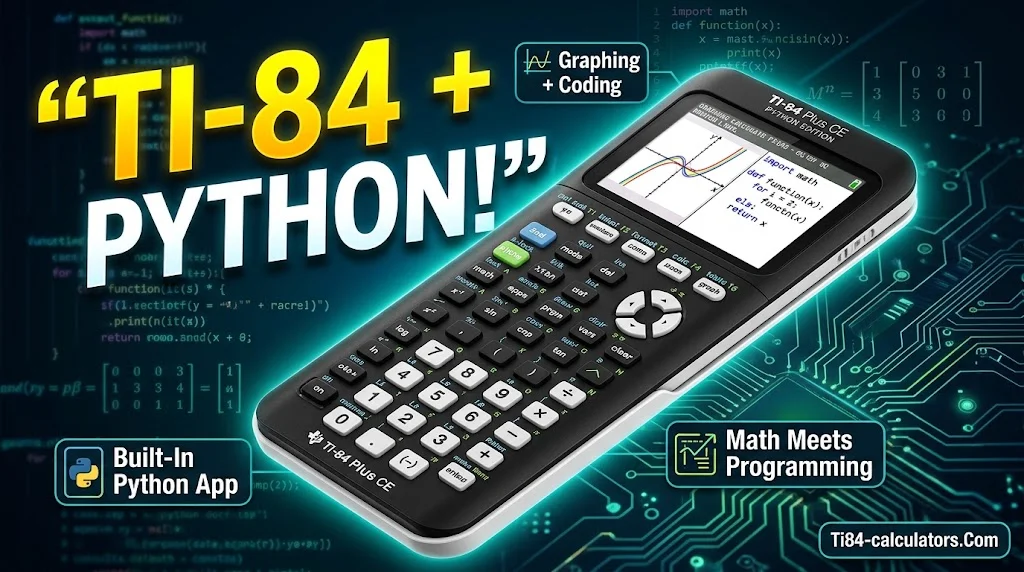
The TI-84 Plus CE Python Edition is a color graphing calculator that also runs Python. You can plot graphs, solve equations and write code on one device. It is also approved for major exams.
This guide explains what the TI-84 Plus CE Python can do. You will see its key features, learn coding basics and write your first program.
What Is the TI-84 Plus CE Python Edition?
The TI-84 Plus CE Python Edition is Texas Instruments’ graphing calculator for middle school through college. Think of it as the TI-84 Plus CE with a built-in coding tool.
It keeps everything in the original TI-84 Plus CE. It adds a Python App on top. TI says the Python Edition “includes all the same features as the original”.
Is it a Python computer? No. It is a graphing calculator with a Python environment inside. It fits classroom work, not heavy software projects.
Who is it for?
- Students in Algebra, Precalculus, Calculus, Statistics, Chemistry and Physics
- Computer Science and robotics students
- Teachers who want math, science and coding on one handheld device
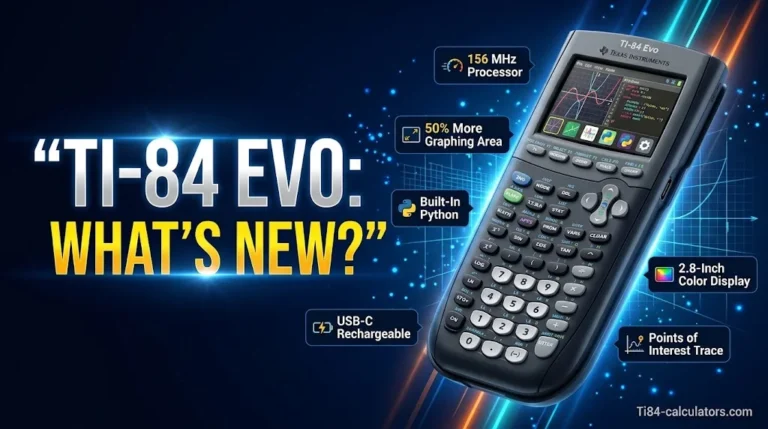
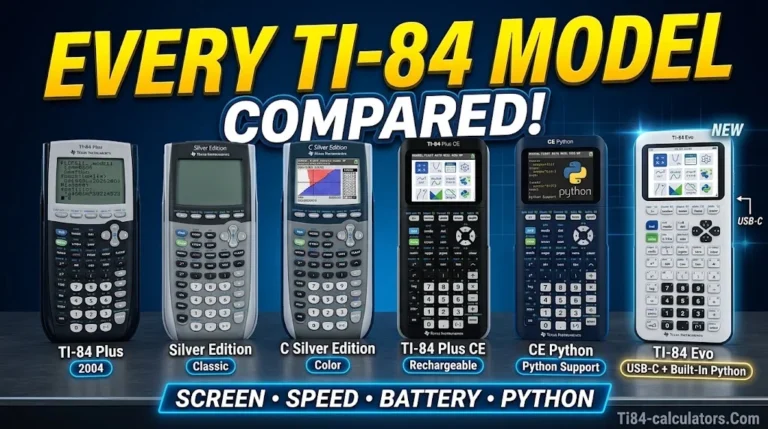
TI also sells the newer TI-84 Evo. Compare models on TI’s Where to Buy page before you pick.
While the TI-84 Plus CE Python Edition offers powerful coding tools and programming features, newer calculator models may provide additional improvements worth exploring. Discover what’s changed in the TI-84 Evo calculator and whether its updated features make it a worthwhile upgrade for students and programming enthusiasts.
TI-84 Plus CE Python Edition Features and Specs
The TI-84 Plus CE Python features cover graphing, algebra, statistics and science. Here is what matters most.
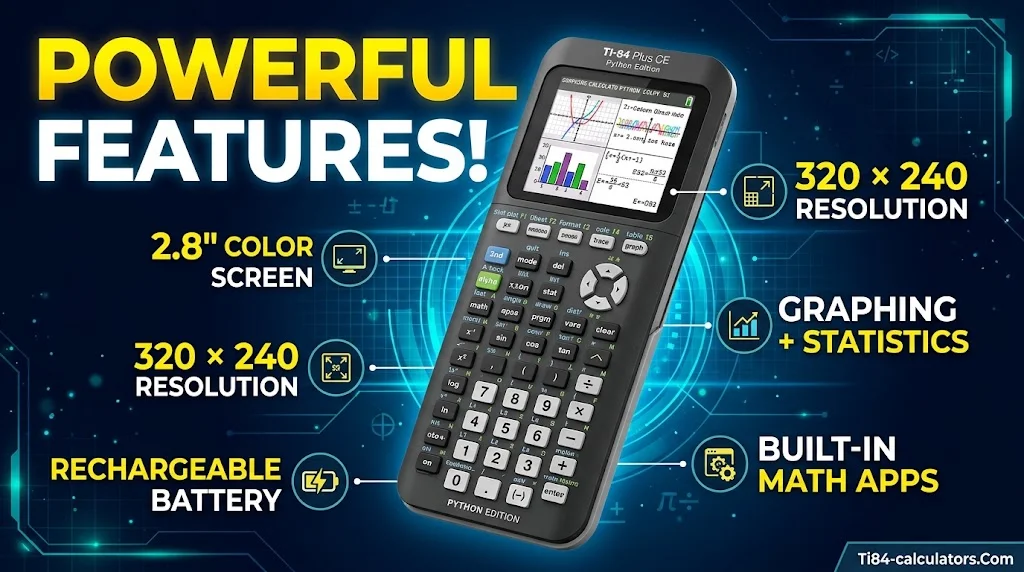
Display and design
- Full-color backlit screen: 320 x 240 pixels, 2.8 inches, 16-bit color
- MathPrint™ notation: fractions and symbols look like they do in your textbook
- Split-screen mode: view a graph and a table together
- 30% slimmer than the TI-84 Plus, according to TI
Memory and power
- 3 MB Flash ROM and 149 KB free RAM
- Rechargeable battery. A full charge takes about four hours, per TI’s Getting Started guide
- USB connection for charging, OS updates and file transfers
Math and statistics tools
- Graphs 10 rectangular functions, six parametric and six polar expressions
- Uses 15 graph colors and eight graph styles
- Stores up to 10 matrices (20×20)
- Runs 11 regression models and 15 probability distributions
- Includes hypothesis tests and confidence intervals
Built-in apps
- Inequality Graphing, Transformation Graphing and Conic Graphing
- Polynomial Root Finder for degree 1 through 10
- Simultaneous Equation Solver for up to 10 equations and 10 unknowns
- Numeric Solver and Finance (TVM) Solver
- CellSheet™ spreadsheet with 999 rows and 26 columns
- Periodic Table with 109 elements
- Probability Simulation, Cabri™ Jr. and Science Tools
What this means in class: Transformation Graphing shows how a coefficient changes a curve in real time. The Numeric Solver checks your homework answers. You can also lay a graph over a photo with background images.
Accessories help too. Teachers can project the screen with TI-SmartView™ CE. The TI Charging Station CE charges 10 calculators at once. Vernier EasyData® sensors collect real-world data.
Keep the OS updated. New Python features arrive through the CE Bundle. Get it from TI’s update page with TI Connect™ CE.
Coding Basics: How to Write Python on the TI-84 Plus CE
Coding on this calculator is simple. You open the Python App, write a few lines and run them. TI’s first program video shows each step.
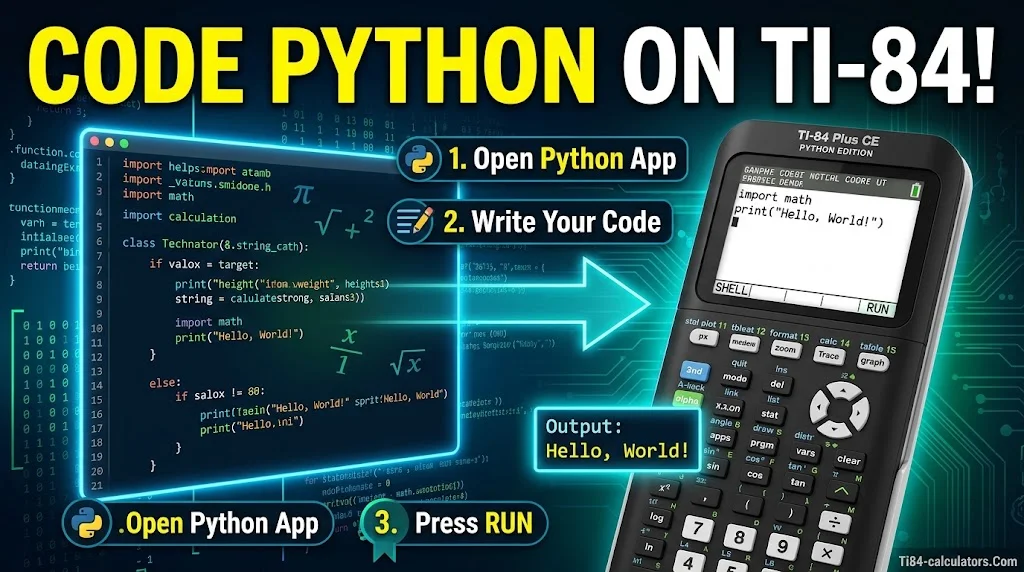
What is the Python App made of?
- File Manager: lists your programs
- Editor: where you write code
- Shell: shows output and runs quick commands
TI-Python is based on CircuitPython, a Python 3 variant made for teaching. It was developed by Adafruit and adapted by TI. Your code runs separately from normal calculator math.
How to write your first Python program on the TI-84 Plus CE
- Press the prgm key and open the Python App.
- Choose New to start a program.
- Name it and type your code in the Editor.
- Select Run to see results in the Shell.
- Fix any error message, then run it again.
Try this quadratic solver:
from math import sqrt
a = float(input("a? "))
b = float(input("b? "))
c = float(input("c? "))
d = b*b - 4*a*c
if d >= 0:
    print((-b + sqrt(d)) / (2*a))
    print((-b - sqrt(d)) / (2*a))
else:
    print("No real roots")
It uses variables, input, math functions and an if statement. These are the core Python basics.
More coding ideas
- Loops to build a times table
- Functions to reuse your math steps
- Random numbers for a dice simulation
- Plotting simple graphs
Write on a computer instead. Save a .py file, then send it with TI Connect™ CE. It converts to a Python AppVar on the calculator. You can also send images and use the ti_image module in your code.
Know the limits. Memory is small. The keypad is slower than a keyboard. Some results may differ from desktop Python because of number type storage.
For more lessons, try TI Codes and the official guidebooks.
TI-84 Plus CE Python vs TI-Basic and Exam Rules
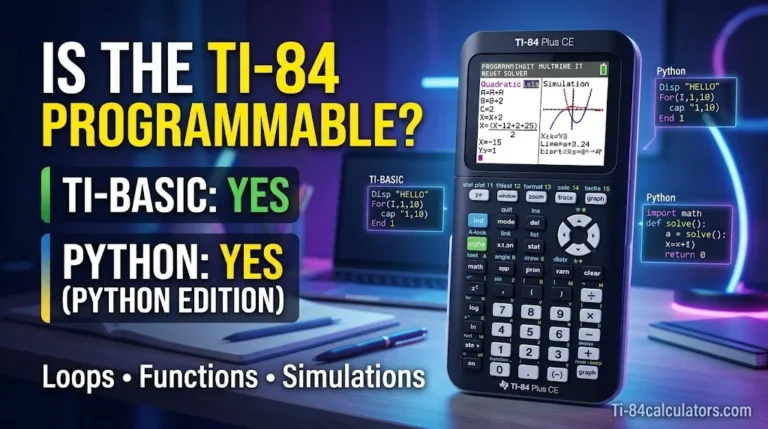
Both TI-Basic and Python let you program this calculator. Your choice depends on your goal.
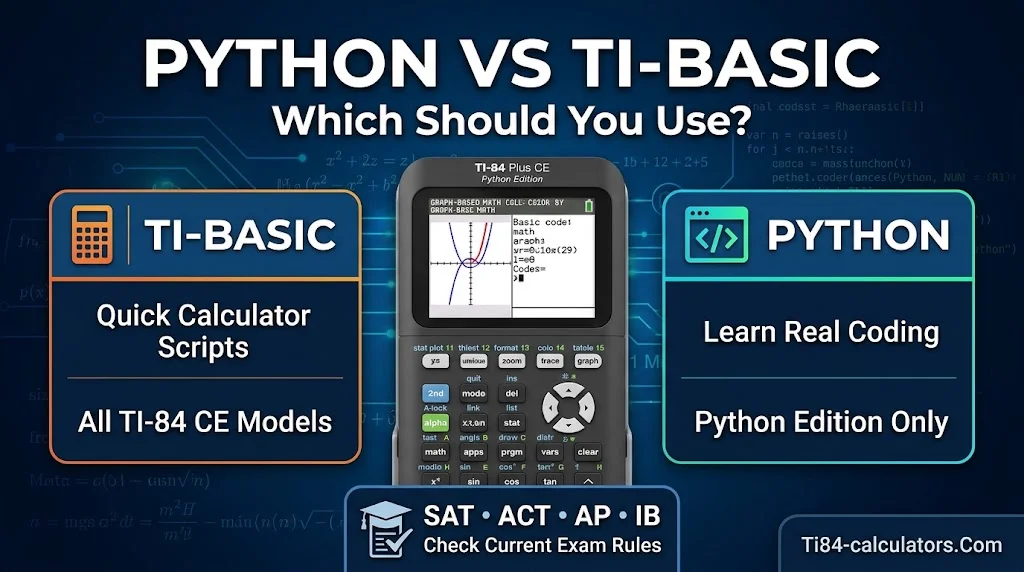
| TI-Basic | Python | |
|---|---|---|
| Where it works | All TI-84 Plus CE models | Python Edition only |
| Best for | Quick math programs | Learning real coding skills |
| Skills gained | Calculator logic | Loops, functions, computer science basics |
TI-Basic is a good fit for fast classroom scripts. Python fits students who want skills for CS classes and STEM careers.
Is the TI-84 Plus CE Python allowed on exams? TI lists it as approved for the PSAT/NMSQT®, ACT®, SAT®, IB® Diploma Programme and AP® exams. Rules can change, so check TI’s exam page before test day.
What is Press-to-Test? It is a test mode that locks features during exams. Per TI’s guide, it deletes stored variables, disables apps and programs, and turns the status bar blue. Your teacher will tell you when to use it. Back up your files first.
FAQs
What can a TI-84 Plus CE Python do?
It graphs functions, solves equations and runs statistics. It also includes apps like CellSheet™ and Probability Simulation. On top of that, it lets you write and run Python programs on the calculator.
What coding language does the TI-84 Plus CE use?
All TI-84 Plus CE models use TI-Basic. The Python Edition also uses Python, based on CircuitPython.
What’s the difference between TI-84 Plus CE and Python?
The TI-84 Plus CE is the calculator. Python is a programming language. The TI-84 Plus CE Python Edition is the calculator that includes Python.
How to code Python on TI-84 Plus CE?
Open the Python App with the prgm key. Choose New, type your code in the Editor and select Run. Results show in the Shell. You can also write a .py file on a computer and send it with TI Connect™ CE.
Conclusion
The TI-84 Plus CE Python Edition gives students one device for math, science and coding. Its color display, built-in apps and exam approval make it a strong classroom tool. The Python App is an easy way to learn coding basics, from variables to loops. Keep your OS updated, start with a small program and build from there. For help, use TI’s guidebooks or TI-Cares™ support.

Timmy Vicky is a passionate educational technology writer who focuses on calculators, math tools, and practical learning resources. At TI84-Calculators.com, he helps students, teachers, and math enthusiasts understand how to use TI-84 calculators and explore their features more effectively. His goal is to make calculator guides, functions, and mathematical concepts easier to understand through clear explanations and step-by-step instructions.