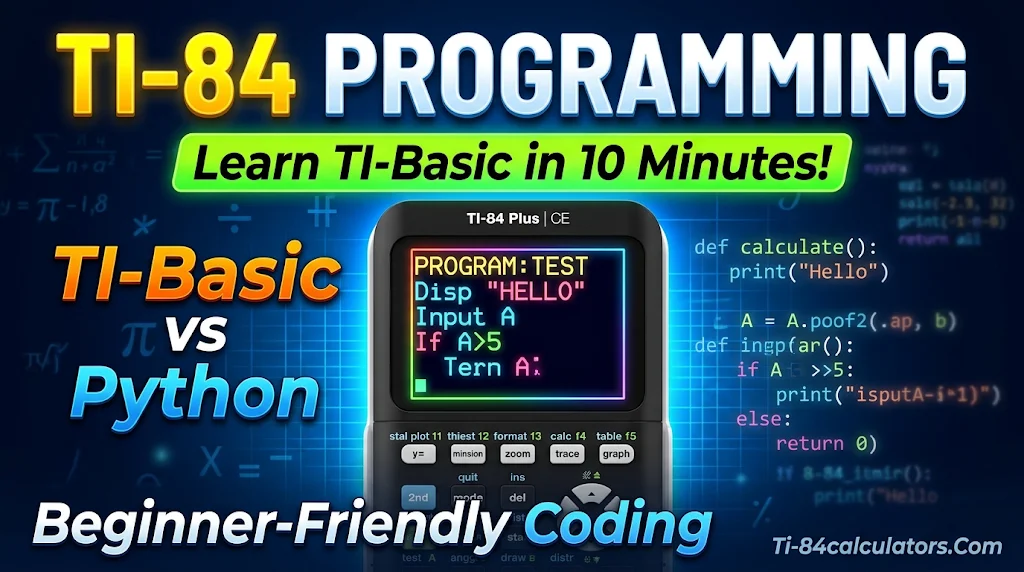
Most students use a TI-84 only for graphing. But this calculator can also run programs you write yourself. TI-84 programming is easier than it looks, and you can finish your first program in about ten minutes.
This guide shows you how to program a TI-84 calculator with TI-Basic, step by step. It works for the TI-84 Plus, TI-84 Plus CE, and TI-84 Plus CE Python. You will write, run, and fix a real program by the end.
What Is TI-84 Programming and Which Language Does It Use?
TI-84 programming means writing a list of commands that the calculator runs for you. Think of it as a saved shortcut for work you repeat often.
The built-in language is TI-Basic, made by Texas Instruments. It has run on TI graphing calculators since the TI-81 in 1990. It is simple, so it suits beginners.
What coding language does a TI-84 use? Every model uses TI-Basic. The TI-84 Plus CE Python adds a second option, Python. Python lets you write longer, more modern code. TI-Basic is still the best place to start.
Can a TI-84 be programmed? Yes. You can store programs that solve formulas, run games, or check homework. Fans also use community tools for assembly and C, but those need extra setup and may not work after an operating system update.
Why learn it? Programs save time on repeated formulas. They also teach logic, which helps in math, science, and computer science classes.
How to Program Your TI-84 Calculator: Setup and Basics
Before you type any code, learn the program editor. A few key presses are all you need.
How do I program my TI-84 calculator?
Follow these steps:
- Press PRGM.
- Use the right arrow to select NEW.
- Choose Create New and press ENTER.
- Type a name and press ENTER.
- Type your code, one command per line.
- Press 2nd + MODE (QUIT) to go back to the home screen.
Naming rules matter. A program name can have up to eight characters. It must start with a letter. After that, you can use letters and numbers. Short names like AREA or QUAD work well.
Know the main menus. The PRGM menu has three tabs:
- EXEC runs a program.
- EDIT changes a program.
- NEW creates one.
Inside the editor, the CTL menu holds control commands like If and For(. The I/O menu holds input and output commands like Disp and Prompt.
Also check your memory. The TI-84 Plus CE has about 154 KB of RAM and 3 MB of archive storage, so small programs fit with ease. Older TI-84 Plus models have less room.
Once you’ve written your first TI-84 program, you can explore even more ways to customize your calculator and make learning fun. From classic puzzles to action-packed adventures, discover some of the best games for the TI-84 calculator, including Tetris, Doom, and Pokémon-inspired games.
How to Code in TI-Basic: Write Your First Program Step by Step
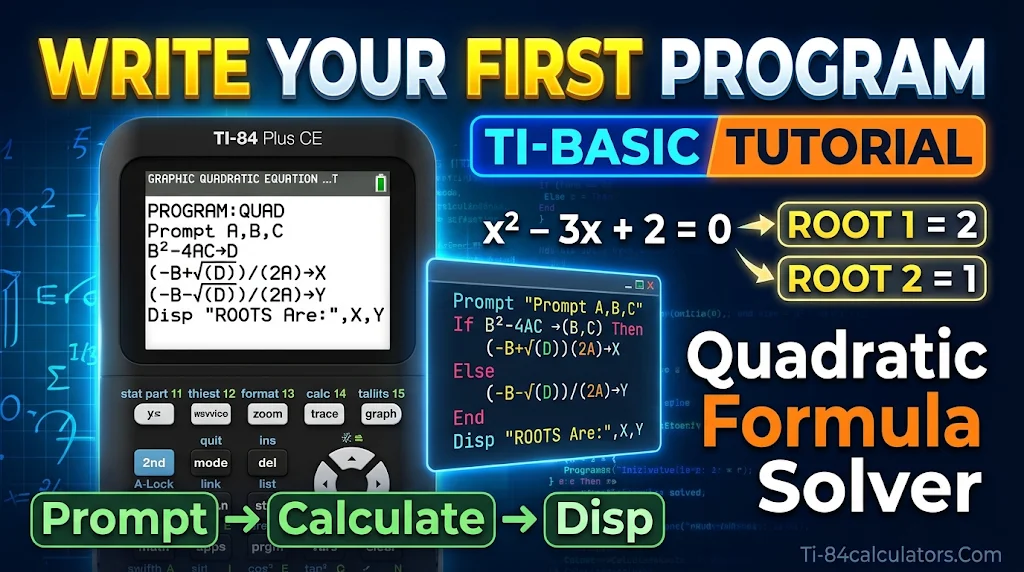
Here you will build a quadratic formula solver. It is more useful than a basic “Hello World,” and it teaches the core commands.
How to code in TI-Basic?
Each line starts with a colon. The calculator adds it for you. Type this code:
What each line does:
- Prompt asks the user to type values for A, B, and C.
- → is the store arrow. Press the STO→ key to type it. It saves the result in variable D, the discriminant.
- If / Then / Else / End is a conditional statement. It checks if D is below zero.
- Disp shows the answer on screen.
Run it. Press PRGM, then EXEC, and pick your program. Press ENTER twice. Type 1, -3, and 2 when asked. You should see 2 and 1 as the roots.
Edit or delete it. To change code, press PRGM, then EDIT. To delete a program, press 2nd + + (MEM), choose Mem Mgmt/Del, then Prgm. Select the name and press DEL.
Try a few more commands next:
- Input asks for one value with a custom message.
- For( repeats steps a set number of times. This is a loop.
- Lbl and Goto jump to another part of the program.
- Pause holds the screen until you press ENTER.
Common TI-Basic Errors, Memory Tips, and Exam Rules
Mistakes are normal. Most TI-Basic errors have a simple fix.
Common errors and fixes:
- ERR: SYNTAX means a typo or missing symbol. Choose Goto on the error screen. The cursor jumps to the problem line.
- ERR: DATA TYPE means you used the wrong kind of value, such as text in a math step.
- ERR: UNDEFINED means a variable has no value yet. Store a number in it first.
- ERR: MEMORY means the calculator is full. Delete old files or archive them.
Share programs with friends. Use TI Connect CE software from Texas Instruments and a USB link cable. You can send programs between your calculator and your computer. You can also send them to another calculator.
Check test rules before exam day. Many U.S. students take the SAT, ACT, and AP exams with a TI-84. The calculator is allowed, but rules about stored programs can change. Read the current policies from the College Board and ACT. Proctors may also ask to inspect your calculator.
Quick beginner tips:
- Test with simple numbers first.
- Keep programs short.
- Use Disp messages to label your output.
FAQs
What coding language does a TI-84 use?
A TI-84 uses TI-Basic. The TI-84 Plus CE Python also supports Python.
How do I program my TI-84 calculator?
Press PRGM, choose NEW, and name your program. Type your commands, then run it from PRGM > EXEC.
Can a TI-84 be programmed?
Yes. All TI-84 models run TI-Basic. The CE Python model adds Python. Community tools can add assembly on some models.
How to code in TI-Basic?
Start each line with a command like Disp, Prompt, or If. Store values with the → arrow. Then run the program from the PRGM menu.
Conclusion
You now know how to create, write, run, and fix a TI-84 program. A small project like the quadratic solver builds real skill fast. Try a grade calculator or a number-guessing game next. Each new program will teach you another TI-Basic command. Open your calculator, press PRGM, and write your first program today.

Timmy Vicky is a passionate educational technology writer who focuses on calculators, math tools, and practical learning resources. At TI84-Calculators.com, he helps students, teachers, and math enthusiasts understand how to use TI-84 calculators and explore their features more effectively. His goal is to make calculator guides, functions, and mathematical concepts easier to understand through clear explanations and step-by-step instructions.